
Group by and Subtotal
This option allows you to cluster the items in the list based on the selected header columns and get the summation of the fields configured with the data type as number.
The following video explains the Group By and SubTotal feature:
- Click on "GROUP BY AND SUBTOTAL" from the list toolbar as shown in the below screen:
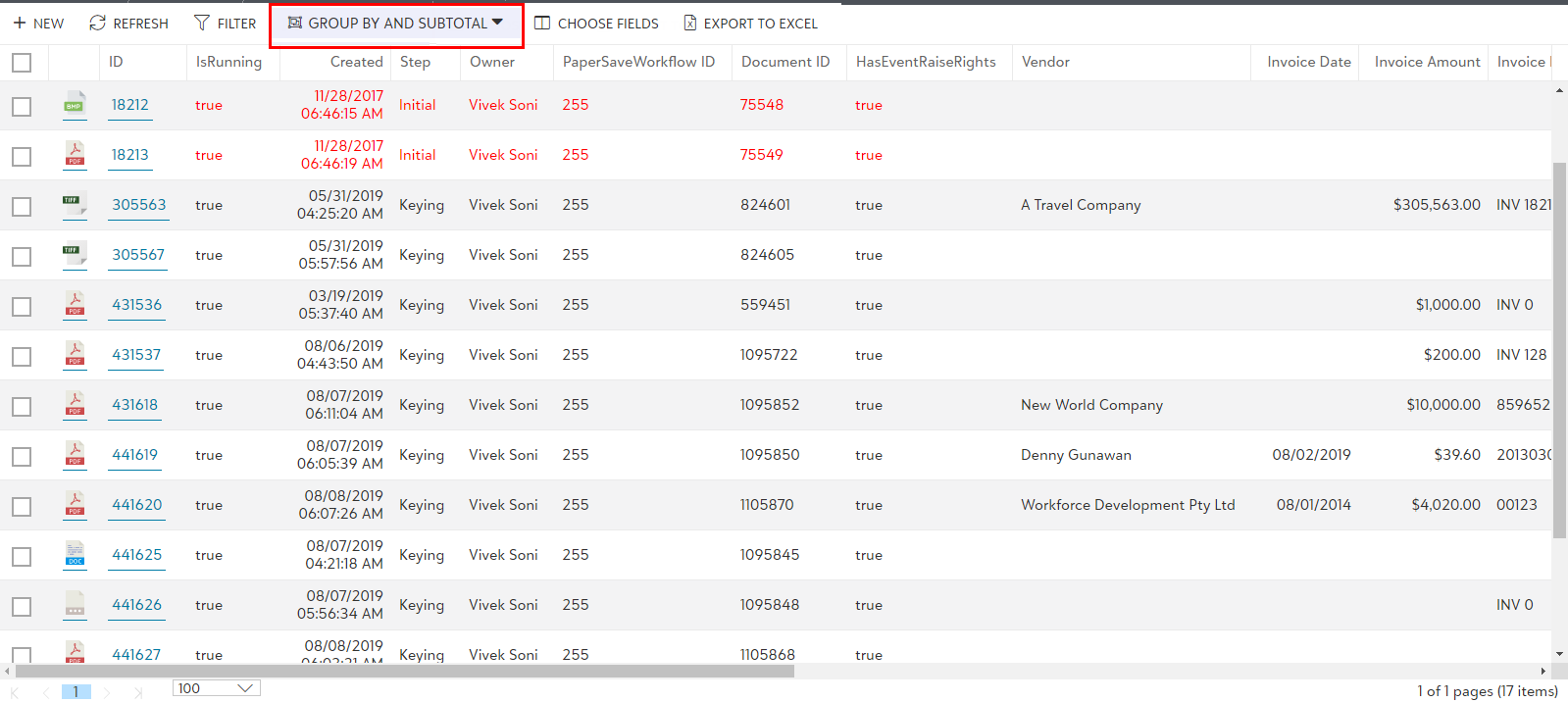
As you click on "GROUP BY AND SUBTOTAL" , a drop-down dialog box will appear. Click on "+New" option to apply Group by and Subtotal option to the current Workflow item list as shown below and a pop-up dialog box will appear.
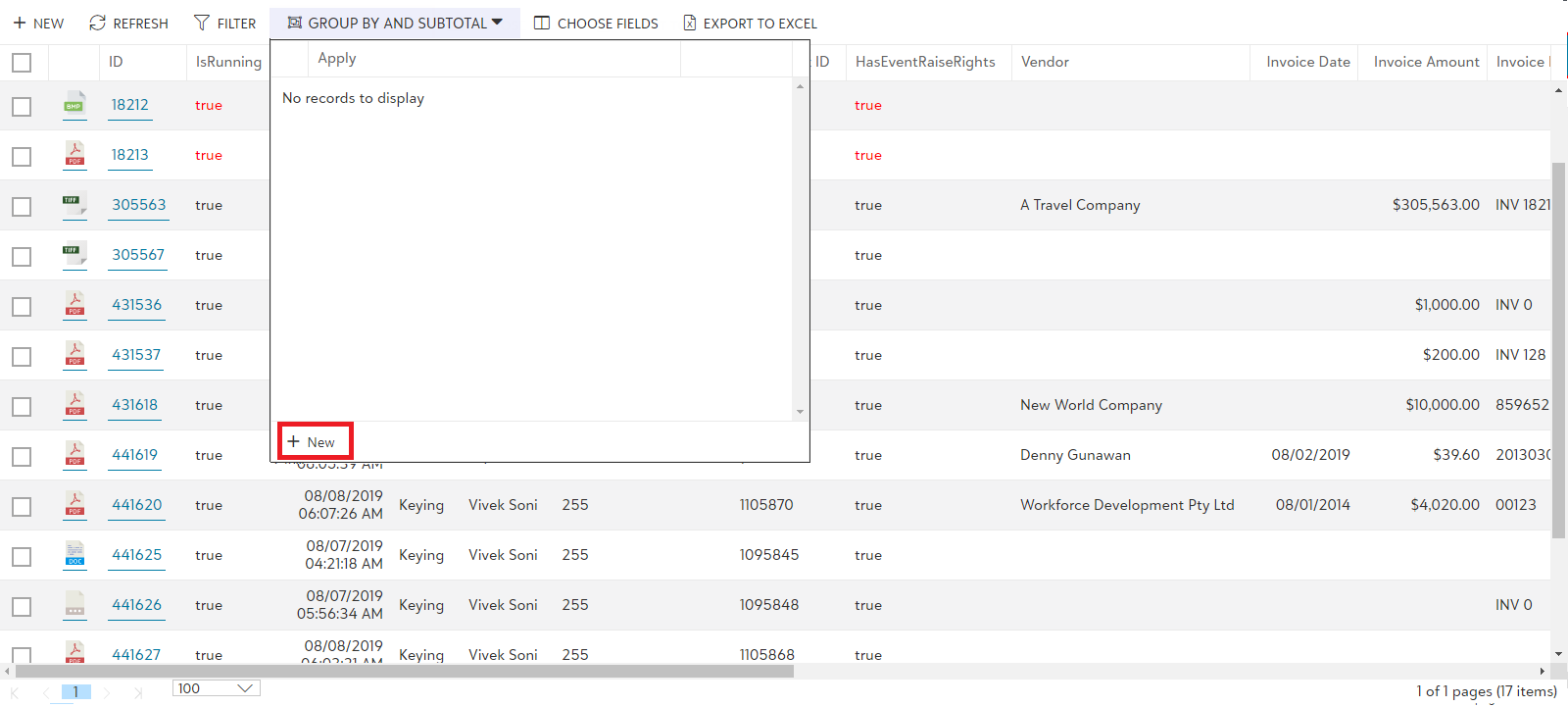
Now, enter a name and description for the new definition and select the fields to group by and subtotal. Also, you can select Shared with all users option to share the current 'GroupBy and Subtotal' definition with all PaperSave users.
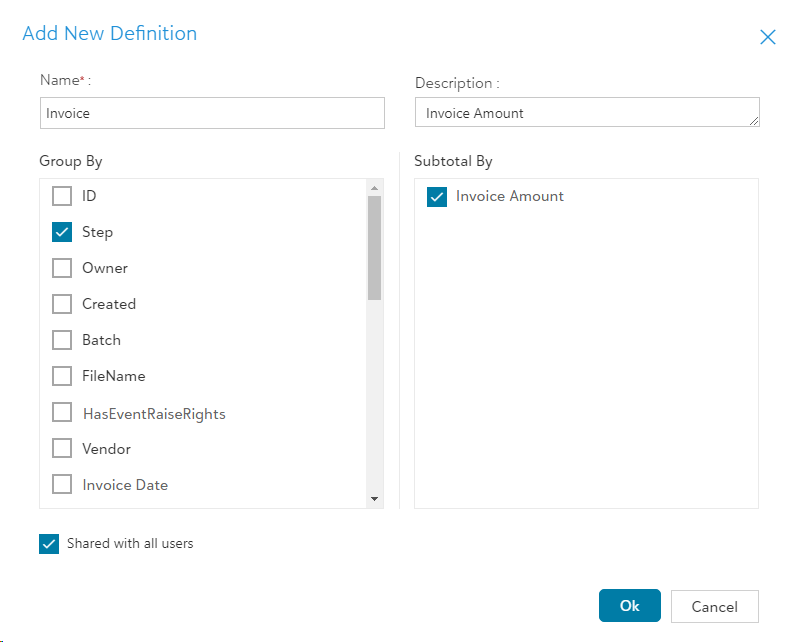
Note: Only the definition owner can edit or delete the shared definition. Others can only view the result.
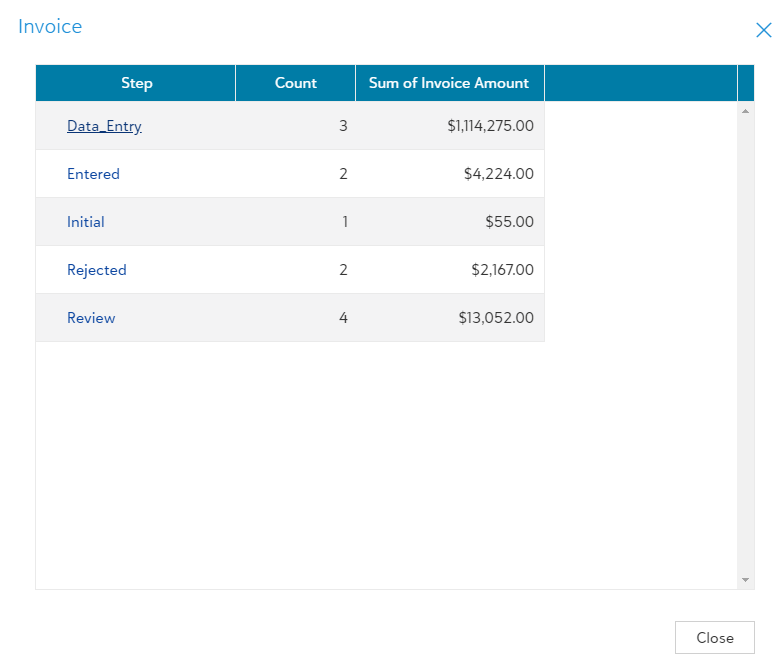
The result will be displayed based on your definition. You can click on the hyperlink to get the list of the grouped items.
To edit or delete the existing definitions, again click on GROUP BY AND SUBTOTAL and see the list of all saved definitions. Now, you can click on  icon to edit and
  icon to delete the existing definitions.